Step 1: Review Newly Received Reservations
When event coordinators send rooming lists, they will show under the “Newly Received Tab.”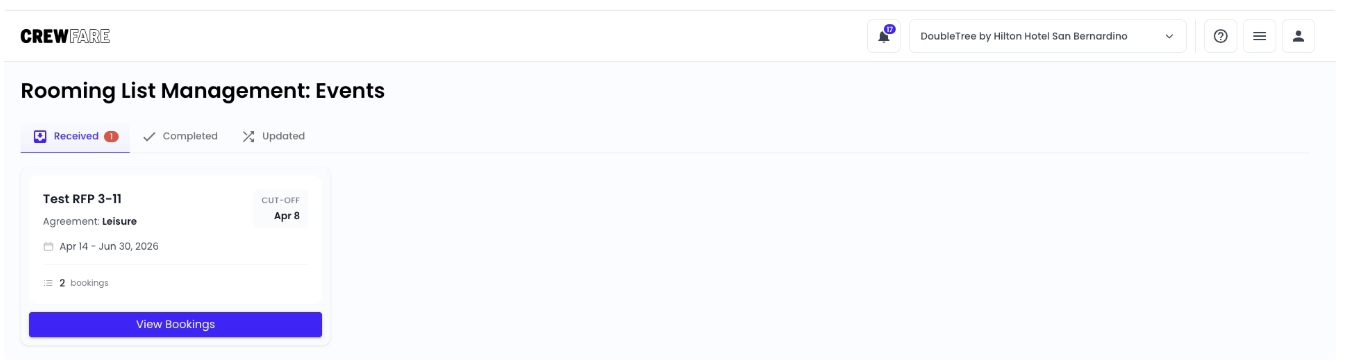
Step 2: Input Hotel Confirmation Numbers
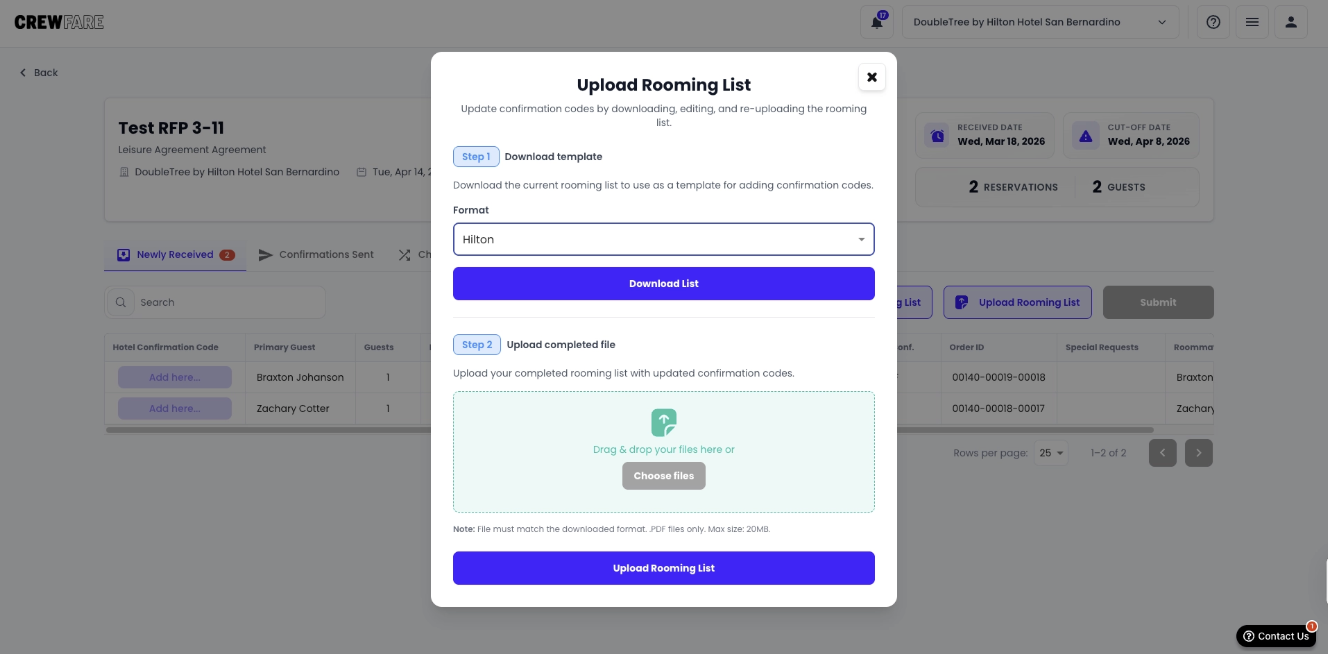
As a property manager or reservations coordinator, you have two options when putting in confirmation numbers. You can put them in manually, or you can batch upload them using any one of the predefined templates.
Please note that your upload and the auto-detection will be subject to formatting restrictions based on the selected format.
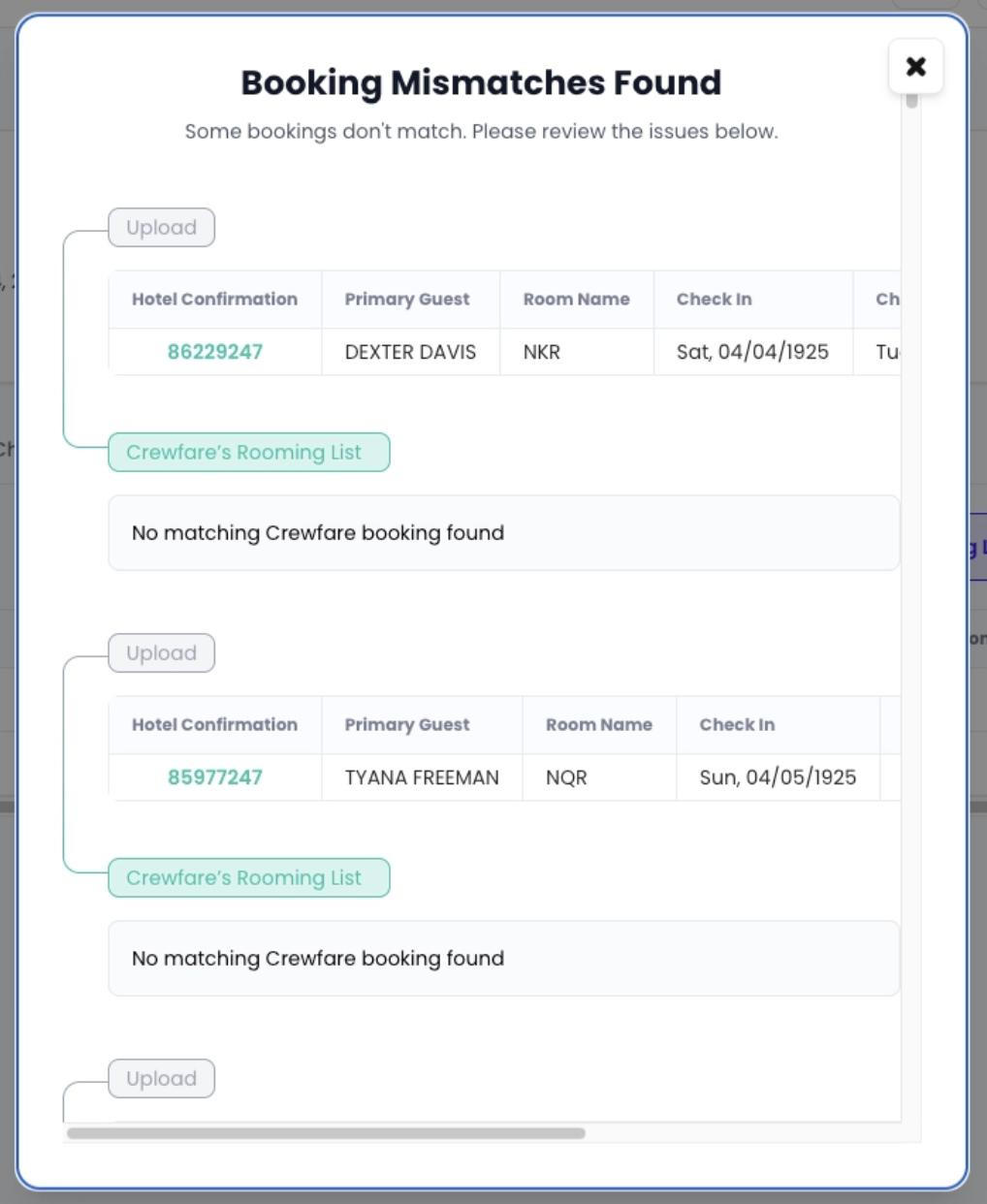
Provided you have used one of the predefined formats, the system will autodetect and differences between your upload and our records. It will ask that you make these changes before uploading the confirmation numbers.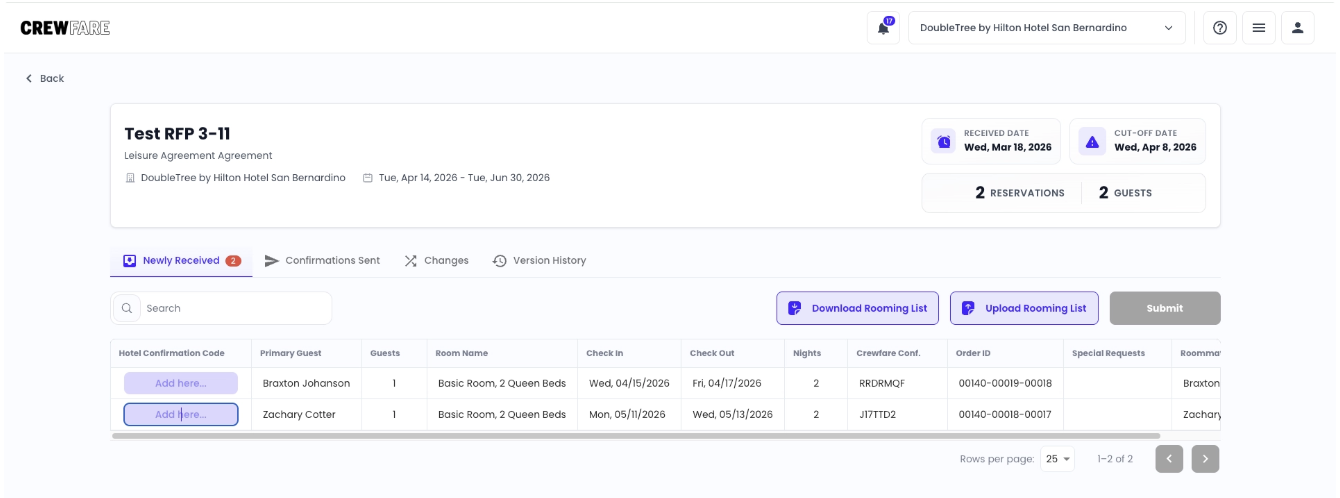
Step 3: Send Confirmations
Submit the confirmation numbers to the event organizer by clicking the submit button in the top right corner of the screen. Before submitting, please make sure:
- All guests are accounted for
- Details are accurate
- Confirmation numbers are present
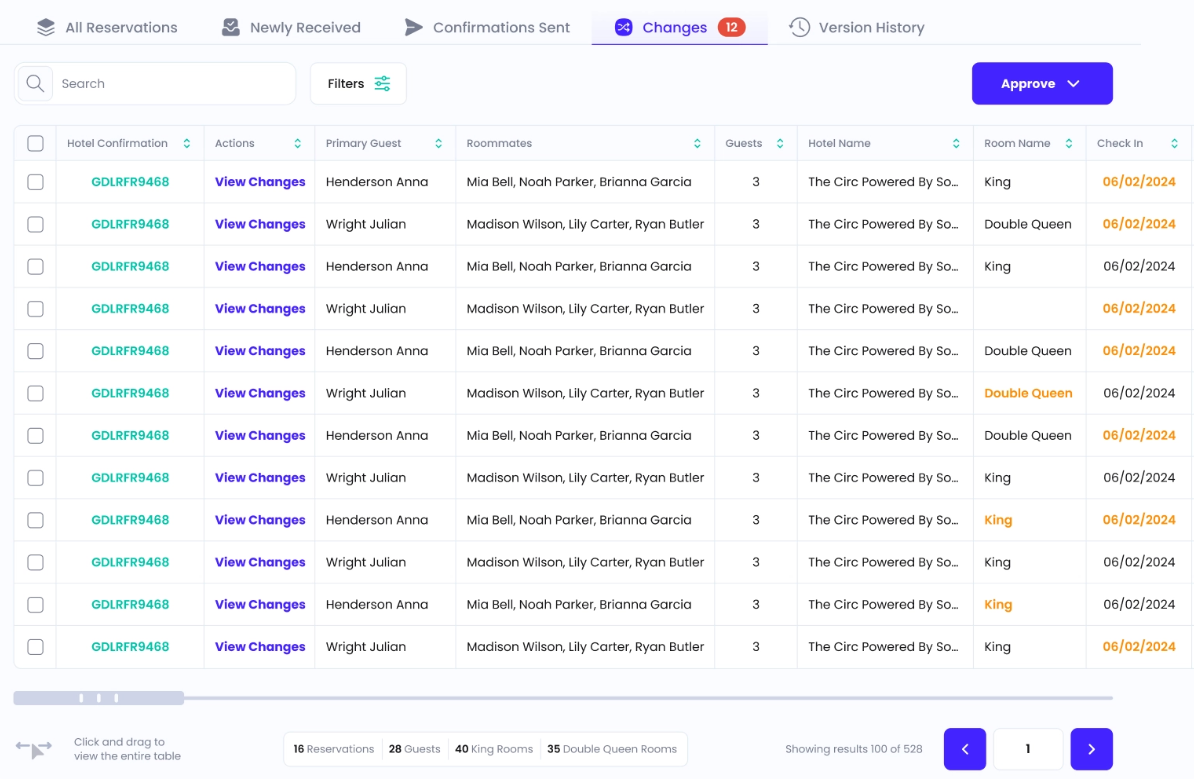
Step 4: Approve or Reject Changes (If Needed)
If anything changes after confirmations have been submitted — such as:
- Guest name updates
- Room type changes
- Adjusted stay dates
These updates appear under Changes for review and approval. If you’re able to accommodate these changes, you can confirm and approve. Otherwise, you can reject the changes. In both cases, the event organizer will be notified.
? Cut-Off Dates & Event Completion
- Cut-off dates are informational and help guide timelines
- Hotels can approve changes after the cut-off date
An event is considered complete when:
- The rooming list has been submitted
- No pending reservation updates remain
Was this article helpful?
That’s Great!
Thank you for your feedback
Sorry! We couldn't be helpful
Thank you for your feedback
Feedback sent
We appreciate your effort and will try to fix the article