Changes and Negotiations through Launchpad
Negotiating Bids through Launchpad is a simple process. But before we start, these are some important considerations:
- You can only reply to RFPs before the due date—so don’t wait too long!
- If an RFP is blocked, no worries! That just means the travel coordinator or travel professional is reviewing your bid.
- Any changes you make will pop up in a different color for the other party to see, and any edits the Travel Coordinator makes will also be highlighted in a different color in your portal. That way, everyone stays on the same page!
Let the fun begin! Ready to reply to an RFP? It’s super easy:
- Step 2: Decline, Save, or Send the RFP
- Step 3: Generate and Sign the Contract
Step 1: Update and Complete the RFP
Room Types
Once you have opened the RFP, you will be able to see the fields that can be modified in a blue color. All the fields are either editable or drop-down menus, very easy for you to change.
The first information you will see, are Room Types.
- The first column shows the room name: this should be exactly as it appears on the hotel's website.
- The second column specifies the room type (single, double, suite, etc)
- The third column provides information about the Configuration (1 bed, 2 beds, double queen bed, etc)
- The fourth column specifies the occupancy limit on a specific room type
- The last column specifies the cost of adding a guest to the room
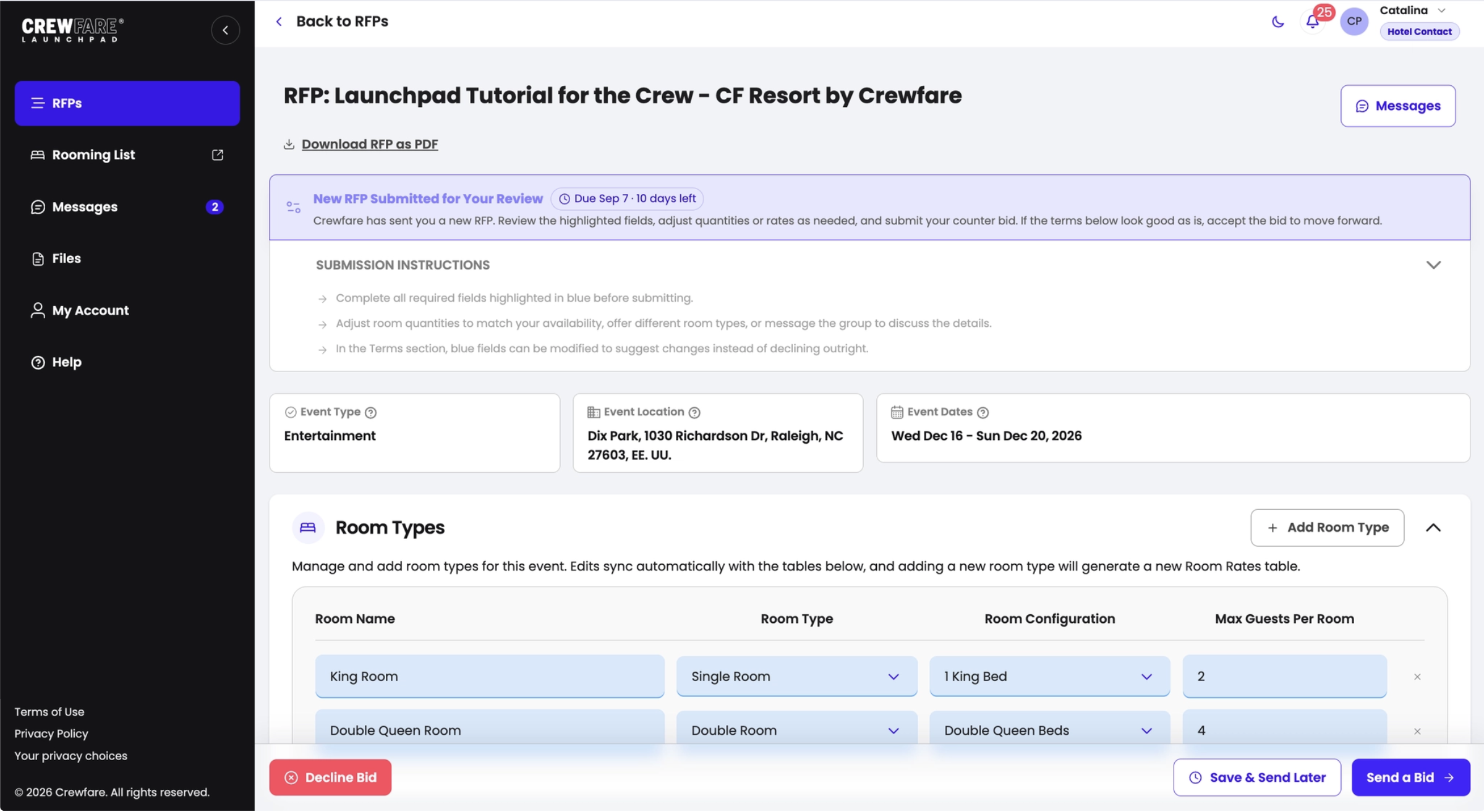
NOTE: The changes you make on the "Room Type" section, will automatically reflect on the "Room Rate" section.
If the required quantities requested on a specific room block are too large for your inventory or availability, please adjust them accordingly. In case you would like to offer more rooms, you are welcome to do so!
Room Rates
- Here’s where you’ll enter the per-night rate and dates before taxes and fees!
- When it comes to room quantities, consistency is key! If you have 5 rooms available on Thursday, March 27th, but only 2 on Friday, make sure to enter 2 for all the dates. This helps keep everything clear and avoids any mix-ups!
Terms
All the terms (except the IATA#) can be modified! Let's take a look at what each of these terms is:
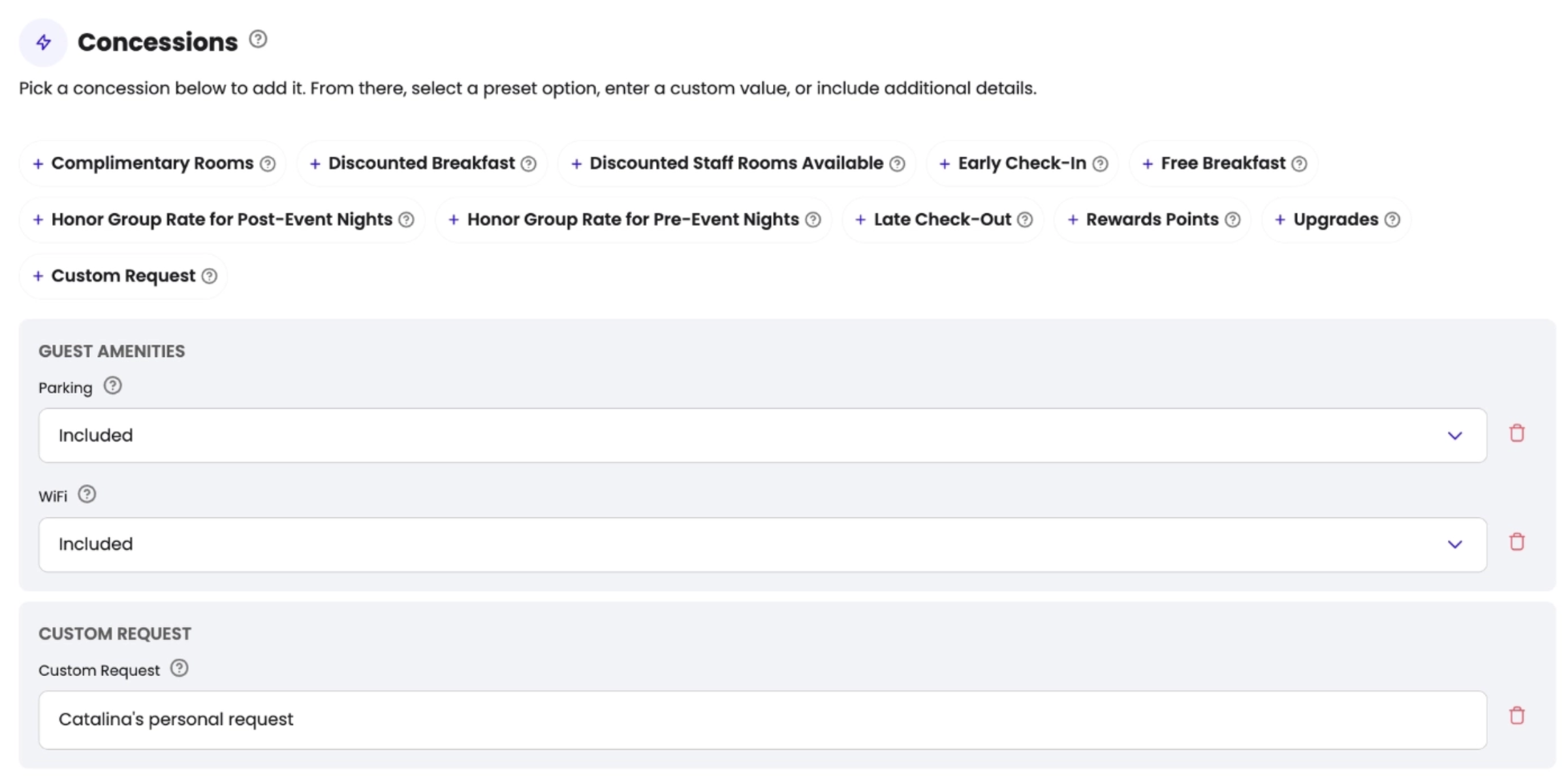
- Attrition: Percentage of rooms or services you can reduce without penalties. You can choose your attrition rate or accept a Courtesy Block.
- Cut-off date: The deadline for the Travel Coordinators to submit the Rooming List and release unsold rooms (if applicable).
- Commission (%): The percentage the hotel will pay to the event organizer handling the RFP.
- Rebate: A fixed amount the hotel pays to the event organizer per night or room.
- Group Rate Honored: The hotel guarantees the group rate will be honored based on the block’s volume.
- Days pre and post-event: Access to rooms before and after the event—also known as “shoulder nights.”
- Comp Rooms: Complimentary rooms the hotel provides based on a certain number of rooms booked.
- Suite Upgrade: Upgrades to suites when available.
- Reward Points: Points the event organizer will earn.
- Staff Rooms: Rooms allocated for the event's staff.
- Staff Discount: Discount provided for staff reservations.
- Resort fee: If applicable, the hotel should specify the amount of the resort fee that the guests will pay at the property.
- Reservation Submission: This clarifies which is the preferred format for room submission.
- Billing: This states what the event organizer will be responsible for paying, and how it will be paid.
- Incidentals: In case the hotel charges an incidental deposit upon arrival, it should be stated in this section.
NOTE: All these terms can be changed and negotiated. If any term is non-negotiable, it can be locked with the lock icon. In addition, if you want to start a direct negotiation or discuss any term in particular, you can select the "Comment" button, and send a direct message to the Travel Coordinator managing the RFP.Additional Terms
If any additional term needs to be considered, you can include it in the additional comments section!
Step 2: Decline, Save, or Send the RFP
Once you have reviewed the Bid, you can either decline it (for instance if you are sold out on the required dates), save a draft to send it later, or send the RFP to the Travel Coordinator.
NOTE: Once you send it, the RFP will be visible for the Travel Coordinator to review and make changes. During this period, the RFP will be "BLOCKED" on your end, which means that you will not be able to make further adjustments. If there is something you forgot to include, please send us an email to launchpad@crewfare.com and our Crew will assist you!Step 3: Counter Bid or Acceptance
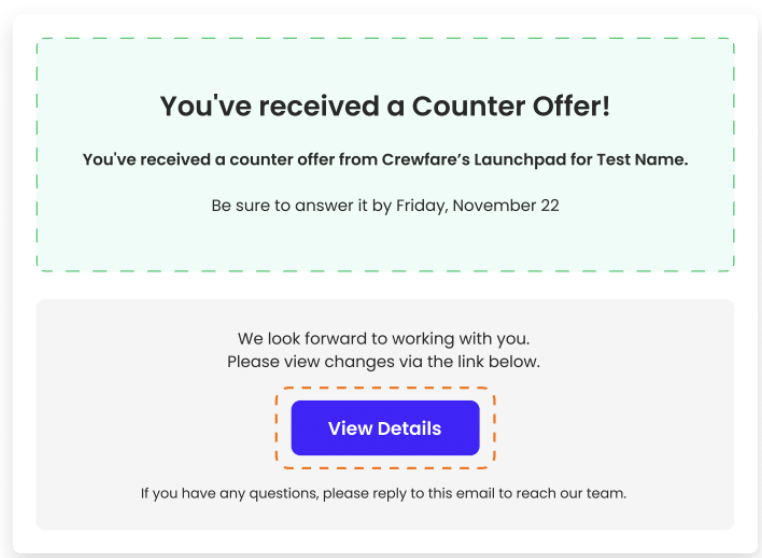
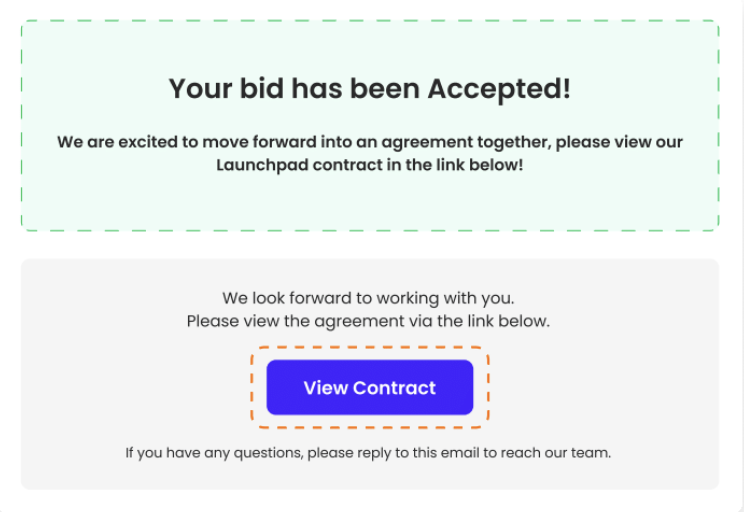
At this point, the Travel Coordinator can either accept the bid or counter-bid. In both cases, you will receive an email notification, and a notification through the platform, as shown below:
Step 4: Generate and Sign the Contract
And voilà, you’re almost there! This is the final step to complete the RFP process. To wrap it all up, check out our article "STEP 3: Generate and Sign the Contract" to learn all the details about what happens next. We’ve got you covered every step of the way!
Was this article helpful?
That’s Great!
Thank you for your feedback
Sorry! We couldn't be helpful
Thank you for your feedback
Feedback sent
We appreciate your effort and will try to fix the article